DOWNLOADING IMAGES
A happy little "how to"
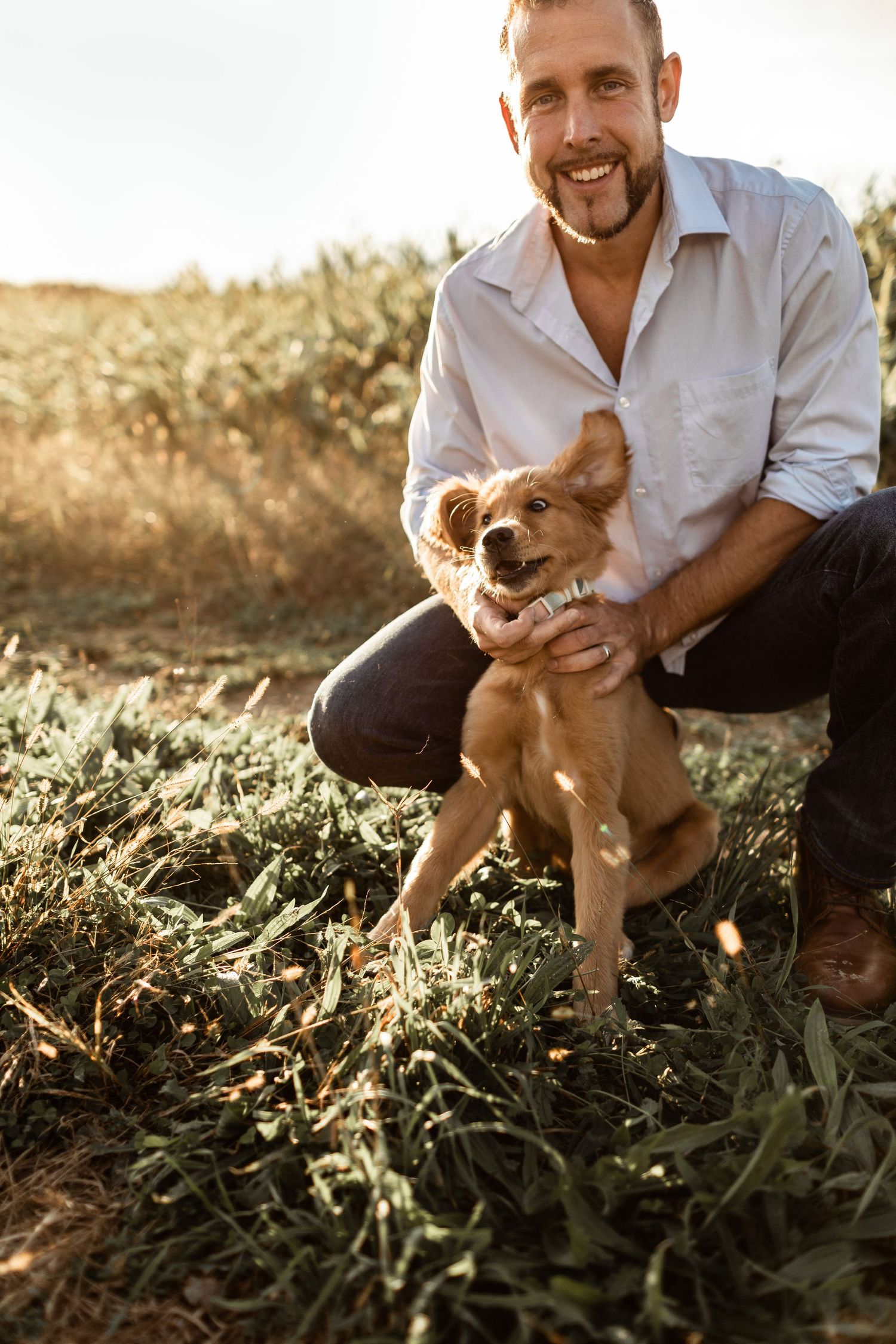
+ Sometimes technology can be overwhelming right? Maybe you feel like this puppy when it comes to computers?? Well, I hope this guide is helpful!
+It is so important to download your images! For printing and to have for the future!
+ I highly recommend putting your downloaded folder into a usb or external hard drive as well to have for years to come, rather than just on your computer.
+ I do ask that all photos shared on social media are downloaded, and not screen shot. Please remember not to edit over images :)
+ Downloads can also happen on phones, but are a little different so I will explain more below!
General "How To" Download
ONE
Go to your Pixieset gallery. You will receive an email with the link and password once your images are ready for viewing or downloads.
TWO
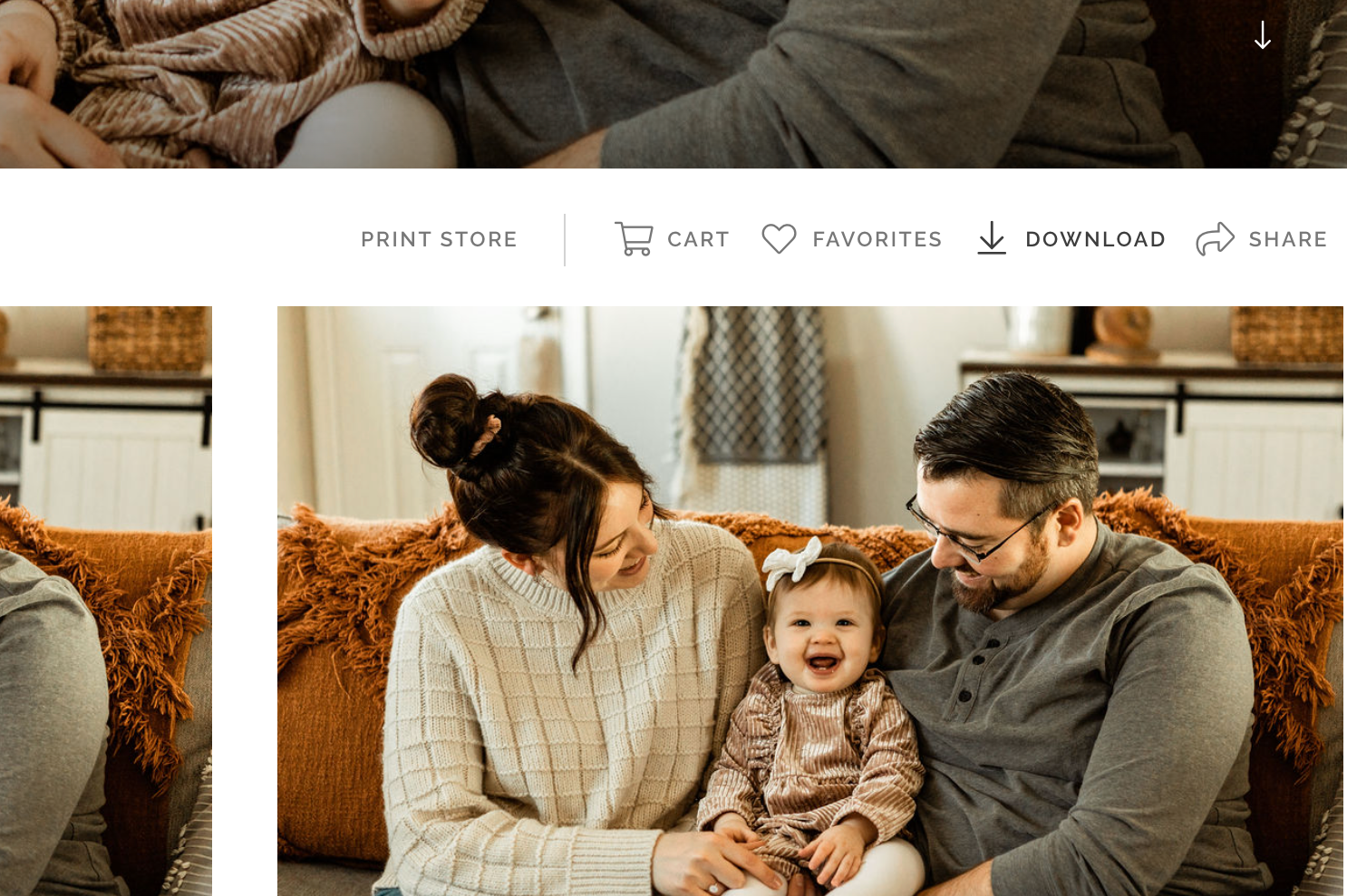
Click on the Download icon. It’s the icon between the Favorite (heart) button and the Share button; it looks like a downward pointing arrow on a rectangle.
THREE
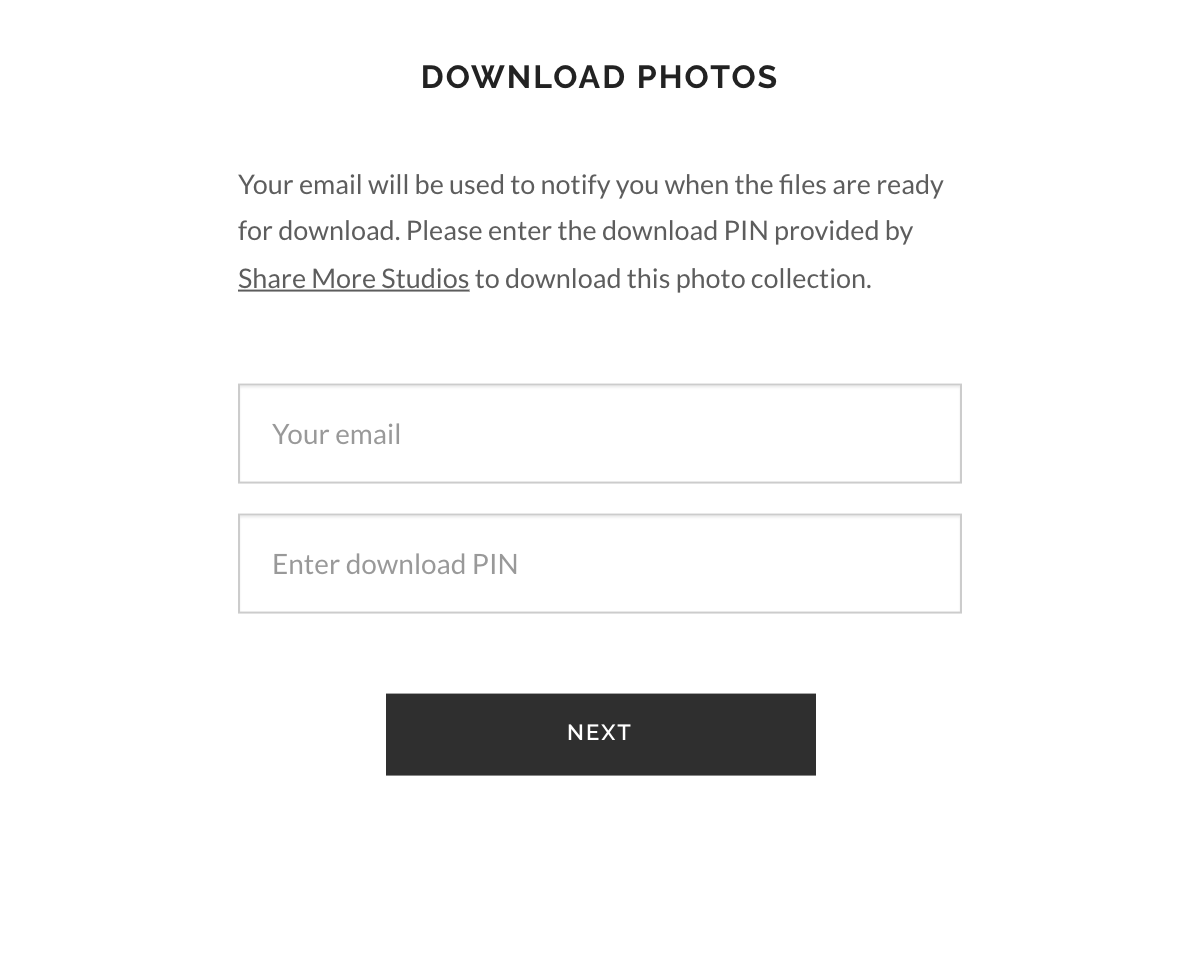
Enter your email address and the 4 digit PIN that was sent to you. This way you can download the full gallery or individual photos.
NOTE: The email address you provide will be used to notify you when your .ZIP file of images is ready (in case you do not wish to wait on the Download page for this to be completed). Piexieset does not use your email for other purposes.
FOUR
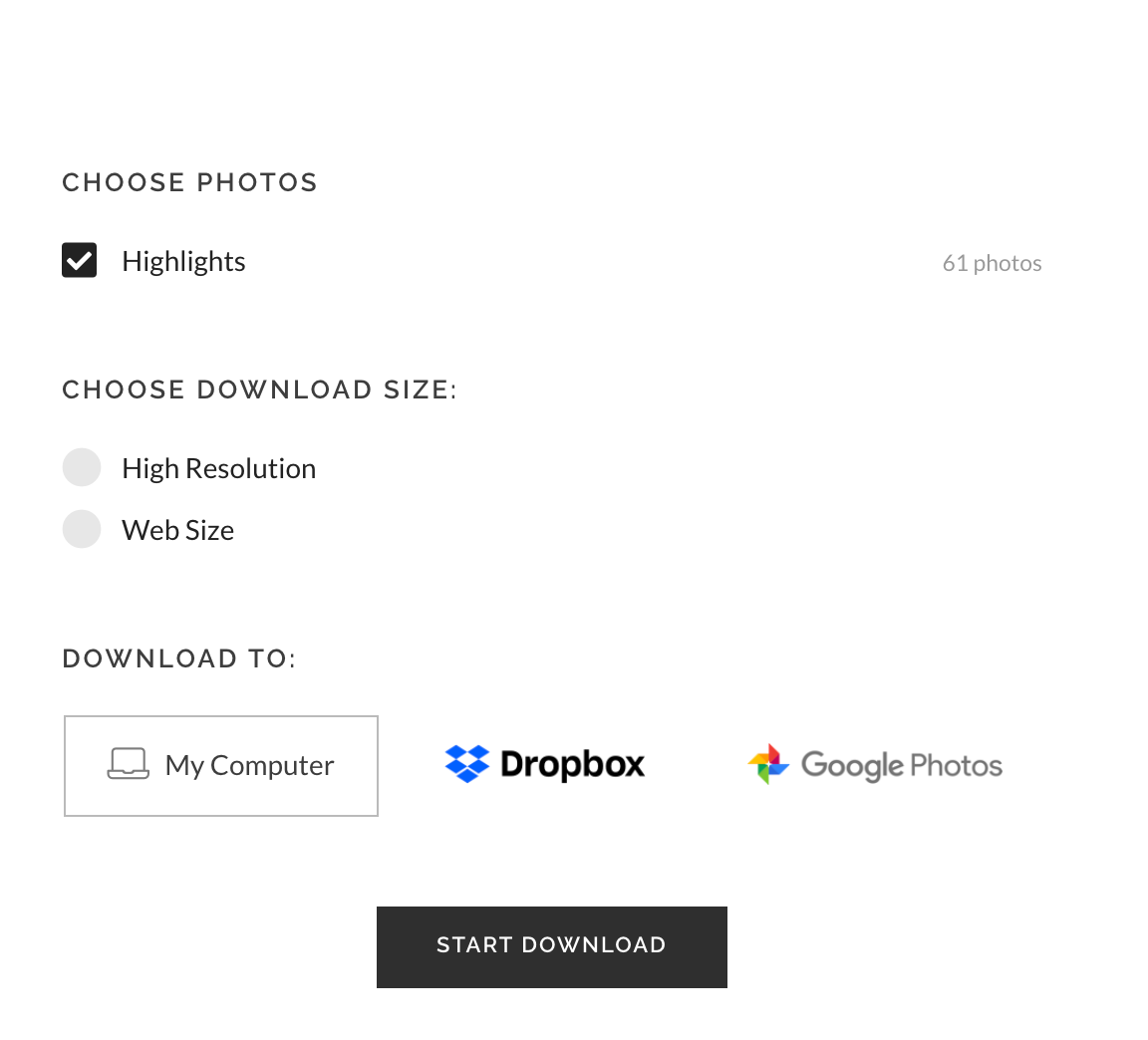
Select where you would like the download to be sent and what size you’d like the images to download in. The choices are WEB SIZE
– perfect for sharing on social media!
High Resolution – for printing! (This is what I would select to save a full gallery)
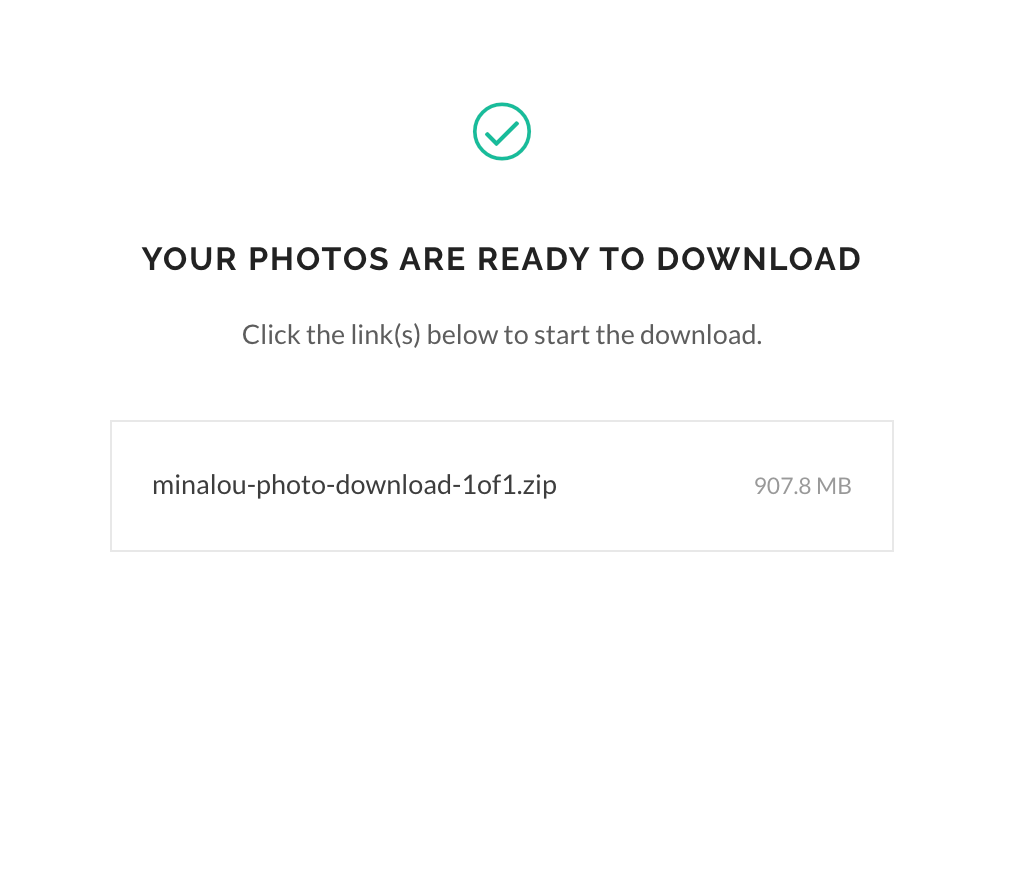
Once you’ve decided which size you’d like, click Download! The next screen will pop up saying that your photos are being fetched and soon another download button will appear.
FIVE
You will receive the gallery download in a .ZIP file on your computer, which you can unzip/extract to get the .jpg images in a new folder. If you select Dropbox or Google Photos, the images will be available to view directly from your account. If you are using "Single Photo Download" to download individual images, it will save the .jpg file directly to your computer or mobile device.
SIX
Put the images into a usb or external hard drive! Enjoy your photos and know you are valued, and I appreciate you!
FOR PHONES
PHONES + Single Download
+On phones and some iPads/tablets, you are only able to download one image at a time
+to do so, click on the image you would like to download, select the download arrow
+It will prompt you to enter your email and the download code you were given
+hit "download" or "submit"
+a new window will appear where you can select where the download will go, I usually select my device, but if you prefer "google photos" or "dropbox" select accordingly!
+ A box will prompt you the image will appear in new window (hit close) OR the image will appear on its own.
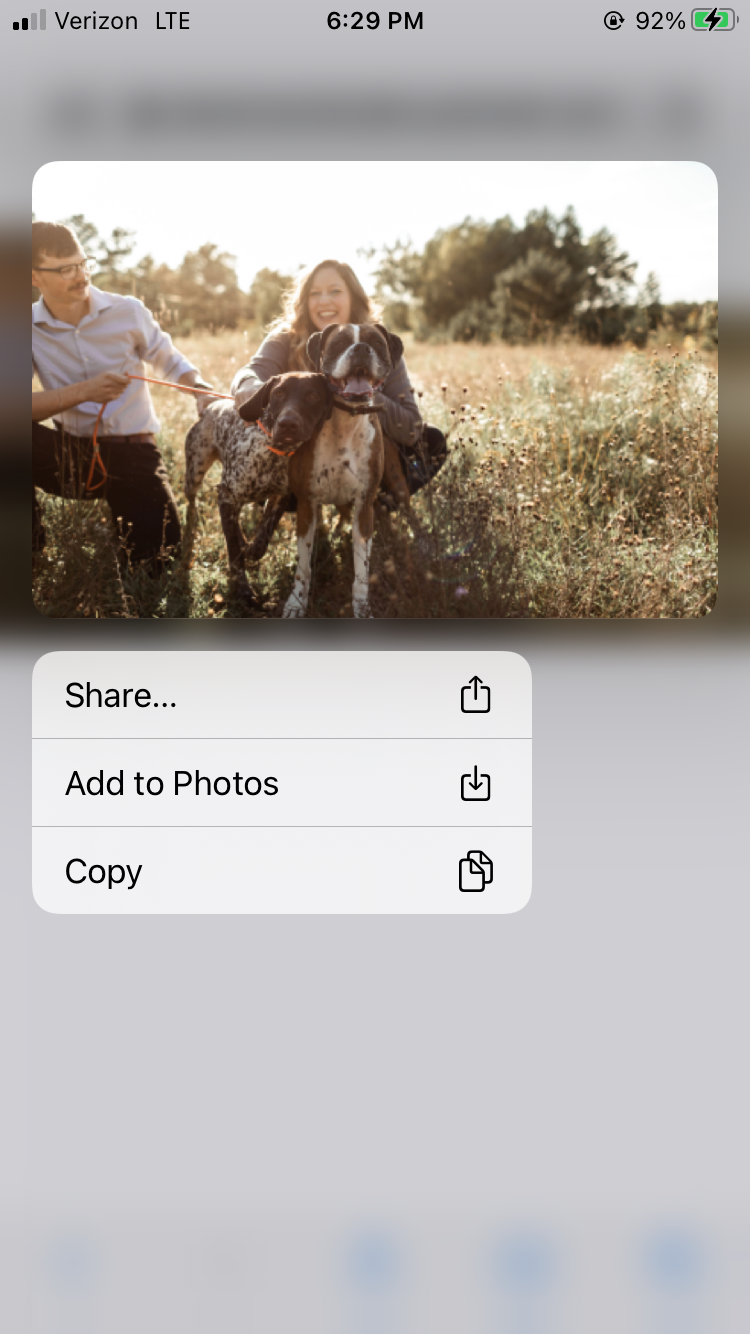
+When the image appears either, select save, or if on an apple device, hold your finger on the photo until a menu appears and then select "add to photos"
+Go to photos (or google photos or drop box, wherever you sent it) and find your photo!
TROUBLE SHOOTING
+ Can't find your gallery after you downloaded it? Either type in the zip file name or the word "highlights" into "finder" on a mac or "my computer search" on pc
BUT I CAN'T OPEN THEM?!
Most computers will already come with some sort of unzip program, in which case you can just follow a couple of quick steps if the images aren't opening, and the computer will start the unzipping process.
Mac Computer:
1. Locate the Downloaded .ZIP file
2. Double-click the file - your Mac will automatically unzip the file so the images can be viewed
PC/Windows Computer:
1. Locate the Downloaded .ZIP file
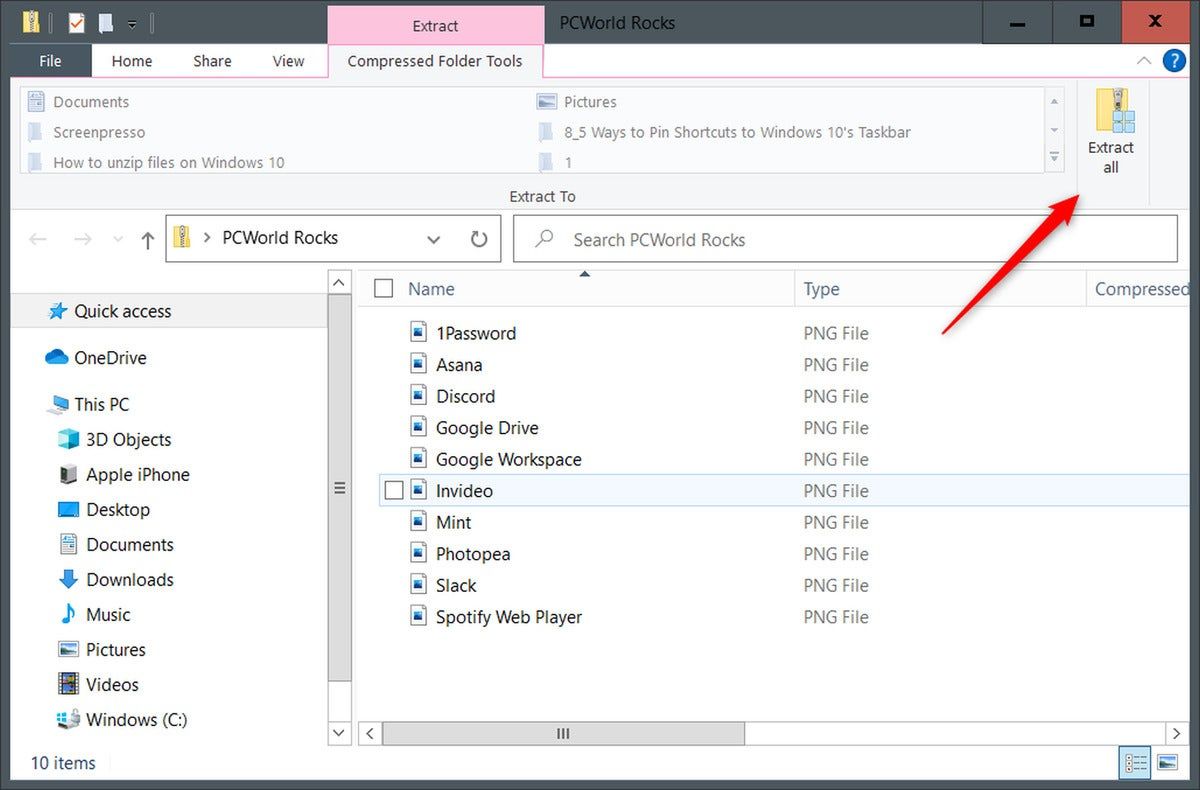
2. Right-click the .ZIP file (or click open zip file, sometimes the extract button is at the top corner)
3. Once you locate the "Extract All" or "Extract Here" button, and the contents of .ZIP file will be extracted as a normal folder so the images can be viewed. This can take some time
If the computer does not have a built-in program for compressed (zipped) folders, there are numerous free unzip software options that can be downloaded and installed.
BUT, you can also buy a usb from me if this is too frustrating OR call me with any questions! I never want you to have a frustrating experience!
814.553.8529
A NOTE FOR PRINTING+ PRODUCTS
+Make sure that you order your prints with a professional lab like the one connected to your gallery or a separate semi professional lab, like MPIX or Artifact uprising for example! This will ensure the best results
+You can print anywhere! I do get a very small commission from my lab connected to your gallery, but I am not opposed to printing elsewhere.
+I do not typically recommend printing at places like Walmart as a first choice, but if that means you get your photos printed to have for years to come, and the simplest way for you, go for it! (There may be some blur that occurs though just a warning!)
+I do offer custom albums, usb's and keepsake boxes and would be happy to draw up a quote for you!
Still have questions?
Message or email me! 814.553.8529 | sharemorestudios@gmail.com